Setup, from the beginning.
Five steps: what plan you need, where you click, and what the first run looks like. Written for someone who has only used Claude as a chat window.
- 1Check your plan
- 2Buy and download
- 3Add the skills to Claude
- 4Run the brand setup once
- 5Your first document
Check your plan
Skills work on every Claude plan: Free, Pro, Max, Team, and Enterprise. Code execution has to be turned on. It is a setting in your Claude account.
- Any Claude plan, including Free
- Code execution turned on
- No API key, no server, no other subscription
Buy and download
Purchases go through Gumroad, which emails a download link to the address you bought with. Updates arrive the same way.
The download holds one file for each skill, plus short guides for install, setup, and compatibility.
You don’t need to open the files. Step 3 adds them to Claude as they are.
- Link emailed by Gumroad
- One file per skill
- Updates arrive by the same email
Add the skills to Claude
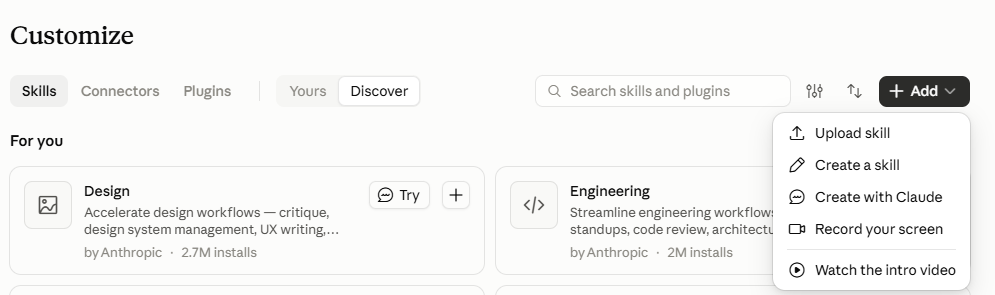
- In the Claude web or desktop app, select Customize in the left sidebar.
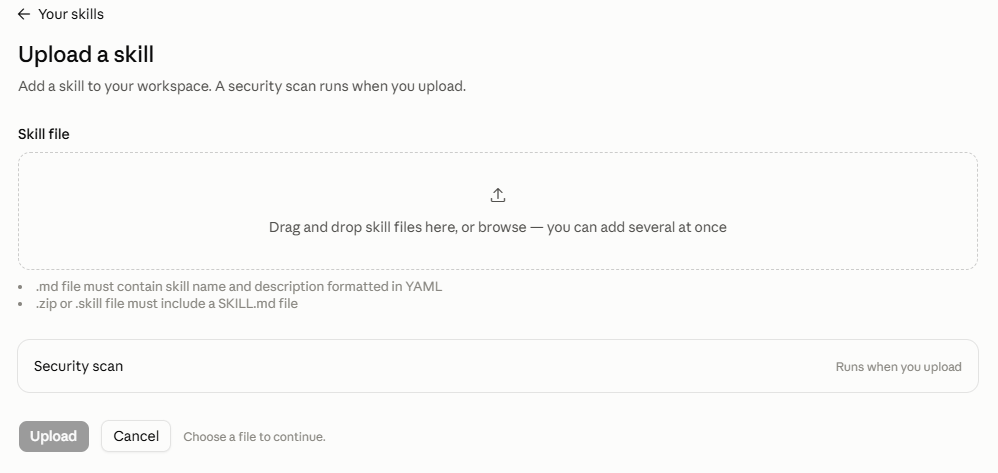
- On the Skills tab, select Add, then Upload skill.
- Drag a skill file onto the box, or browse to it. If adding several at once fails, add them one at a time.
- Select Upload. Repeat for each skill.
Skills added to your claude.ai account reach the web app, the desktop app, cloud sessions and routines.
Run the brand setup once
Do this before any document. It asks for your logo, colors, and fonts, checks them, and saves them where the other skills can read them. It takes a few minutes and you never do it again.
To start it, ask Claude to set up your brand, or typebrand:at the start of a message.
It records a brand you already have. It doesn’t design one. Ask it to invent a brand and it will say so, then offer neutral defaults until you have one.
- Your logo
- Your colors
- Your fonts
Your first document
Ask for the document by name, “Build an SOP for…”, then write down how the work is done in your own words: who does what, the steps, the exceptions. Notes are fine.
Before it hands you the document, the skill checks what it built.
Skipped the brand setup? You still get a finished document, on plain neutral defaults.
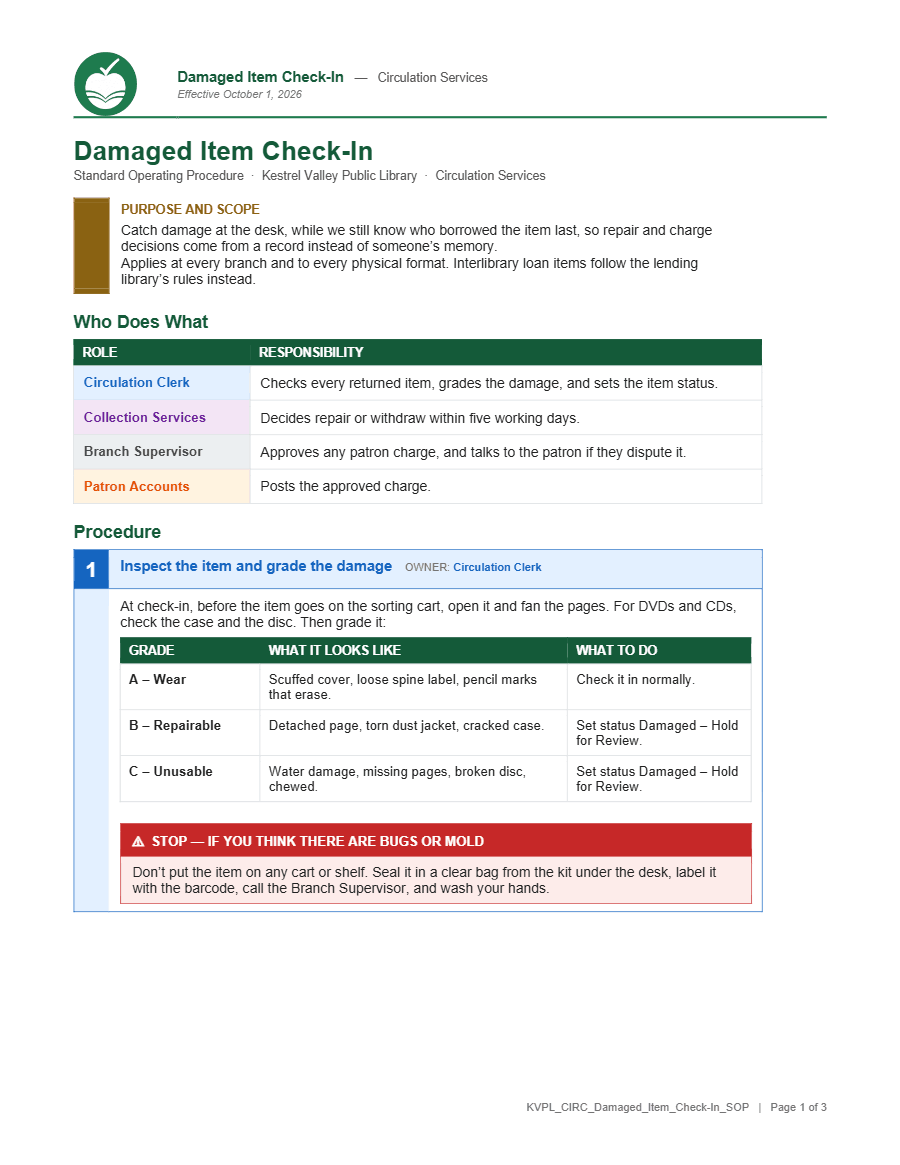
Kestrel Valley Public Library is a fictional library built for these examples.
What to do next.
Claude answered like a normal chat.
Ask for the document by name: an SOP, a quick reference, an agenda, the minutes. Each one also has a typed shortcut, listed on its pack page. If it still doesn’t start, the skill may not be added to the account you’re signed in to. Go back to step 3.
It said no.
Some requests are outside what a skill does. A refusal says what it won’t do and what to do instead. Do that, or ask for the thing it does.
It doesn’t look like my brand.
The brand setup hasn’t run on this account yet. Without it, documents build on plain neutral defaults, on purpose. Run step 4 and ask again.
The document is wrong.
Email hello@happypath.works with what you typed and what came back. I will either get it working or support your refund request to Gumroad in writing. Allow a few days for a reply.
TechnicalUsing Claude Code, and opening the files
If you work in Claude Code, drop each skill folder into your skills directory, each skill in its own folder. Needs Node 20 or newer on the machine.
~/.claude/skills/<skill>/<project>/.claude/skills/<skill>/A .skill file is a zip file under another name. If yours won’t open, rename it to end in .zip.
Install location differs by surface, and the two do not sync. A folder you drop into ~/.claude/skills/ or .claude/skills/ is local to Claude Code on that machine. Skills added to your claude.ai account are the ones that reach the web app, the desktop app, cloud sessions and routines. Installing one place does not install the other, so put it wherever you actually work, or both.
On Enterprise plans the upload screen shows a security scan row. When it finds nothing, the skill installs with no extra message.