Step-by-step procedures (SOP builder)
Describe how a task is done, in your own words, and get it back as a Word document in your brand: one card per step, each role in its own color, warnings where they matter, and your screenshots beside the steps they belong to. The skill checks the file before you get it.
A Claude plan with code execution turned on (Setup, step 1), and the brand setup run once, so the document comes out in your logo, colors and font. Without the brand setup you still get a finished document, in plain neutral colors.
Add the skill
In the Claude web or desktop app, select Customize, then Skills › Add › Upload skill, and upload sop-docx.skill from your download. Every upload tested so far used the file renamed to sop-docx.zip; if the .skill file is not accepted, rename it and upload again. Setup walks through the screens.
Tested in Claude Code, the claude.ai web app and the Claude desktop app. See compatibility.
Ask for an SOP
Start a new chat and ask for it by name: “Build an SOP for…”. Then write down how the work is done: who does what, the steps in order, the exceptions, and anything that must not be done. Notes are fine. You do not need to format anything or explain what an SOP looks like.
If you have screenshots, attach them as PNG files and say which step each one belongs to. You can also attach an existing Word document and ask for its screenshots to be carried over.
If the brand setup gave you two files to keep, brand.json and logo.png, attach both to the chat with their names unchanged. That is how the skill finds your brand.
Ask for a one-page card and it hands you to the job aids skill instead. A PDF, a spreadsheet or a slide deck is another skill’s job too. If your notes have no steps or roles in them, it asks before turning them into an SOP rather than inventing steps.
What comes back
A Word file, named from your brand’s naming pattern, such as ROAST_OPS_Grinder_Calibration_SOP.docx. In the same reply Claude says which brand it used, or that it used the neutral colors, and whether it checked how the pages break.
Worked example
One request, typed into a new claude.ai chat with brand.json, logo.png and a screenshot of the calibration screen attached. ROAST WORKS is an invented coffee roastery.
What was typed
What came back
The file: ROAST_OPS_Grinder_Calibration_SOP.docx, 2 pages.
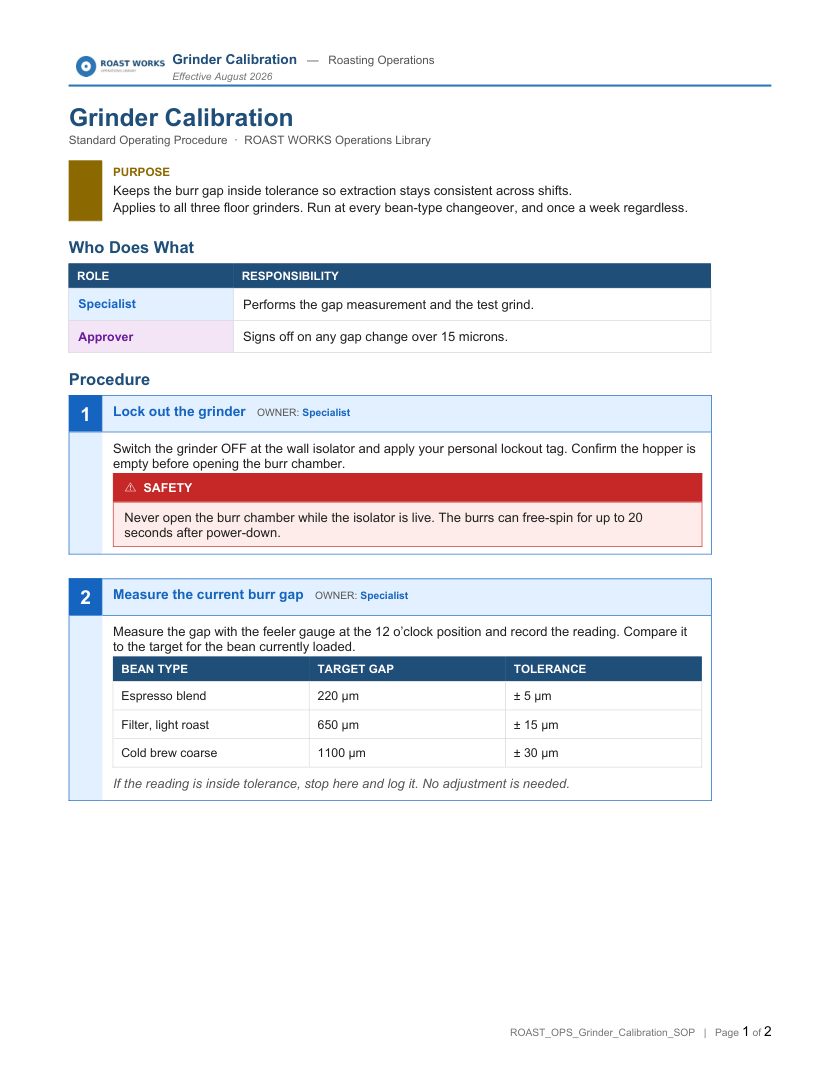
Page 1 of what came back.
What gets checked
Before you get the file, the skill checks it. The file goes out only when every check passes:
- the file name follows your brand’s naming pattern;
- every step has an owner listed under Who Does What, and every role listed there owns at least one step;
- each role keeps the same color everywhere it appears;
- there is at most one red stop warning, so it keeps its weight;
- nothing inside a step card is too wide for it, so the colored bar down each card stays visible;
- the page is US Letter in your brand’s font, the logo is your brand’s, and the footer names the file;
- text on a colored background has enough contrast to read.
What no check can tell you: whether the steps are right, and whether the right people own them. Read it before you send it.
If it looks wrong
It says the skill’s files are missing. Once in testing, a chat loaded the skill’s instructions without its files. Claude stopped and said so rather than build an unchecked copy. The same request in a new chat worked.
It is in plain colors, not your brand. The skill did not find your brand, so it used the neutral defaults on purpose. Attach brand.json and logo.png and ask again. If you do not have them, run the brand setup first.
It asked whether you really want an SOP. Your notes did not have steps or roles for it to carry over. Add who does what and the steps, or tell it to go ahead.
Claude answered like a normal chat. Ask for the SOP by name. If it still does not start, see Setup, “When it doesn’t work”.
Using Claude Code instead
Extract the .skill file into your skills folder: ~/.claude/skills/ for every project, or .claude/skills/ inside one. A .skill file is a zip under another name. A skill in that folder does not reach your claude.ai account, and one on your account does not reach that folder.
Needs Node on the machine; the pack is tested on Node 20 and Node 24. Nothing else to install: the one library the skill uses ships inside it.
The skill reads your brand from brand.json and logo.png, looking in this order and stopping at the first hit: the path in HPW_BRAND_KIT, the folder you build from, any folder above it, then the neutral defaults. It never reads a brand from inside an installed skill folder.
To confirm the install, run this from the folder you will build in. Exit 0 means every file is present:
To prove it end to end, build the shipped sample from a folder outside the skill. It builds the sample and checks it; expect PASS — clean: